
admin
 opencti, fedora, threat, intelligence, beginner, guide, stepbystep, cyber, security
 0 comment
 28 Jul, 2025
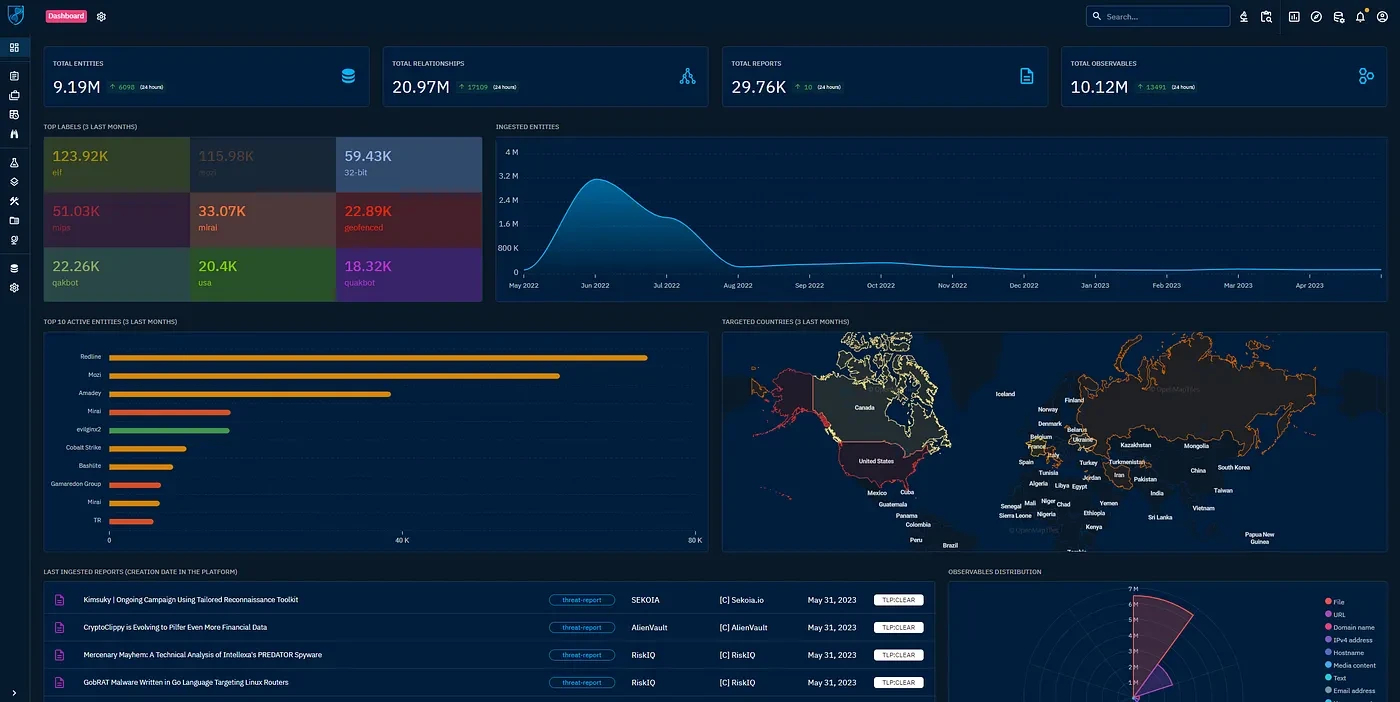
What is OpenCTI?
OpenCTI (Open Cyber Threat Intelligence) is a powerful platform to collect, manage, and visualize cyber threat intelligence (CTI) like indicators of compromise (IOCs), malware info, threat actors, and TTPs all in one place.
By the end of this guide, you’ll have OpenCTI running on Fedora, fully Docker-based (the officially recommended way).
🎯 Prerequisites What You Need Before Starting
A Fedora Linux Machine
Fresh Fedora Workstation 39 or Fedora Server 39+.
At least 8GB RAM and 4 vCPUs.
Around 20GB free disk space.
Internet Access
Required to download Docker images and dependencies.
Basic Terminal Usage
We’ll use simple copy-paste commands. Nothing advanced.
⚙️ Step 1: Update Fedora Packages
First, open your terminal and run:
sudo dnf update -y
Why? You want the latest system security patches before running Docker containers.
🐳 Step 2: Install Docker and Docker Compose
Install Docker:
sudo dnf install -y dnf-plugins-core
sudo dnf config-manager --add-repo https://download.docker.com/linux/fedora/docker-ce.repo
sudo dnf install -y docker-ce docker-ce-cli containerd.io docker-compose-plugin
Start Docker and enable it at boot:
sudo systemctl start docker
sudo systemctl enable docker
Test Docker installation:
docker --version
docker compose version
You should see Docker and Docker Compose versions printed.
🏗️ Step 3: Clone OpenCTI Repository
git clone https://github.com/OpenCTI-Platform/docker.git opencti-docker
cd opencti-docker
This downloads all necessary files to deploy OpenCTI.
📋 Step 4: Configure .env File (Important!)
Copy the sample environment configuration:
cp .env.sample .env
Open .env in a text editor (like nano):
nano .env
Here’s what to check/change:
VariablePurposeExampleOPENCTI_ADMIN_EMAILAdmin login emailyour.email@domain.comOPENCTI_ADMIN_PASSWORDYour OpenCTI passwordStrongPassword123!OPENCTI_ADMIN_TOKENUnique API token (UUID format)Use uuidgen to generate
Generate a token easily:
uuidgen
Copy-paste that as OPENCTI_ADMIN_TOKEN.
Save & close (Ctrl + X, then Y, then Enter).
📦 Step 5: Start OpenCTI Services via Docker Compose
docker compose pull
docker compose up -d
This may take several minutes it’s downloading all OpenCTI components:
OpenCTI Backend (GraphQL)
OpenCTI Frontend (Web)
ElasticSearch
RabbitMQ
Redis
MinIO
Worker services
Check if everything is running:
docker ps
All services should be in Up state.
🌐 Step 6: Access OpenCTI Web Interface
Open your browser and visit:
http://localhost:8080
Login using the email & password you set in the .env file.
✅ You’re now inside OpenCTI!
🔌 Step 7: Install a Threat Connector (Optional but Recommended)
Let’s add a live feed — say OTX (AlienVault Open Threat Exchange):
Go to the connectors folder:
cd connectors/alienvault
Copy the sample config:
cp config.yml.sample config.yml
Edit config.yml:
nano config.yml
Update these lines with your OTX API Key (from https://otx.alienvault.com):
yaml
opencti:
url: 'http://opencti:8080'
token: 'Your-OPENCTI-Admin-Token-Here'
connector:
id: 'Unique-UUID-Here'
type: 'EXTERNAL_IMPORT'
name: 'OTX AlienVault'
scope: 'indicator'
auto: true
alienvault:
api_key: 'Your-OTX-API-Key-Here'
Generate UUID for connector.id:
uuidgen
Run the connector:
docker compose -f docker-compose.yml -f connector-alienvault.yml up -d
Check connector logs:
docker logs -f connector-alienvault
🧐 Step 8: Verify Data Ingestion
In OpenCTI Web UI:
Go to Data > Entities > Indicators.
You should see indicators pulled from OTX.
You can also view the connector status under Settings > Connectors.
🚧 Troubleshooting Tips
+-------------------------------+--------------------------------------------------------+
| Problem | Solution |
+===============================+========================================================+
| Docker containers won’t start | Run: docker compose logs and check for errors |
| "502 Bad Gateway" error | Wait a few minutes — ElasticSearch may be initializing |
| No data from connector | Check OTX API key or network connectivity |
+-------------------------------+--------------------------------------------------------+
🔒 Security Best Practices (For Production Use)
Change all default credentials in .env.
Run OpenCTI behind HTTPS (via Nginx reverse proxy).
Limit external API key usage.
Keep your Docker images updated (docker compose pull).
🎉 Conclusion
And that’s it! You’ve successfully installed OpenCTI on Fedora using Docker Compose even if you’ve never touched CTI tools before.
Now you can explore MITRE ATT&CK data, MISP feeds, or even build your own connectors.


admin
0 comment